Here’s How to Personalize Your Life360 App Experience
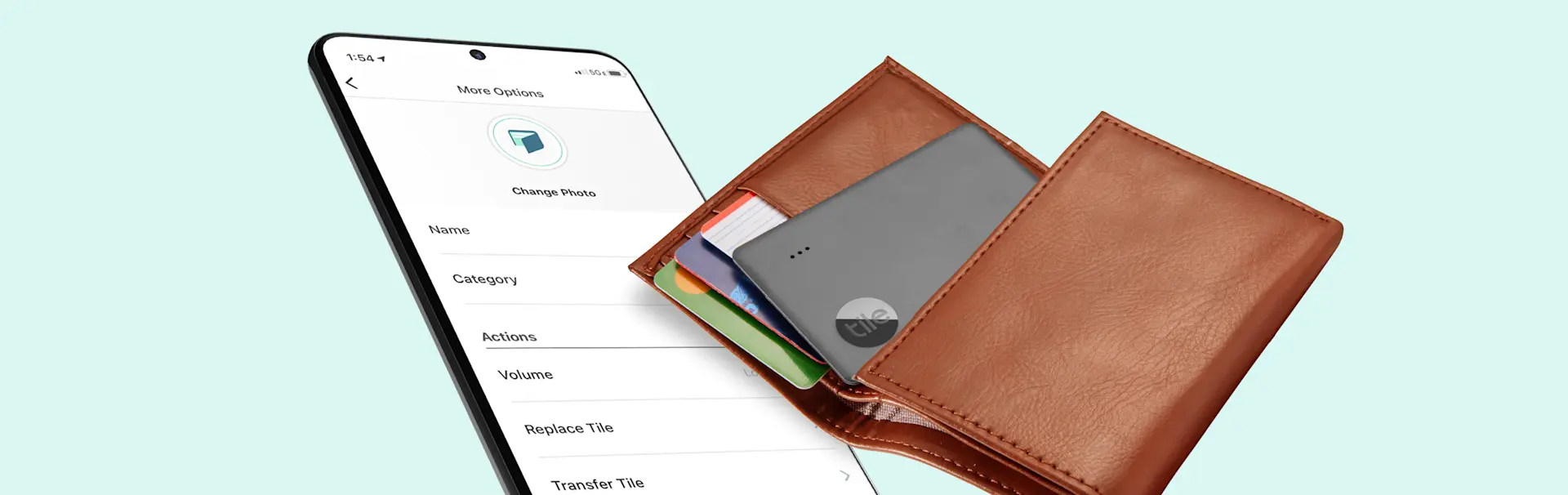
Sometimes Tile trackers and the free Life360 app are all you need to keep track of your most important items and everyday essentials. For example, you can use the Life360 app as your own personal key finder for your house and car, wallet finder, cell phone finder, and more. But the app isn't just about functionality, you can customize it in a variety of ways to make it your own and tailor it to what suits your lifestyle.
From changing the names of your Tile trackers to activating key finding features, or sharing your tags with other people like friends and family, there are lots of different ways to personalize your Life360 app to create a unique and custom experience. This guide will go over some simple methods you can use right now to adjust your Life360 app and make it your own!
How to Change the Photo on Your Tile
One of the simplest ways to personalize your Life360 app is by changing the photos associated with each of your Tile trackers. This way, you can quickly and easily differentiate between each Tile and see the item each one is attached to. To do this, all you need to do is follow these simple steps:
Open up the Life360 app on your phone or other connected devices.
Scroll through the Tiles and tap on the one you want to change the photo for.
Tap on the “Change Photo” button.
From there, you'll be able to upload a new photo from your phone or select an existing one.
How to Change the Name of Your Tile
Another great way to personalize your Life360 app experience is to update the names of your Tiles. This makes it easier to differentiate between items, so you can quickly find the Tile you want to ring or track whenever you’re using the Life360 app.
Open up the Life360 app on your phone or other connected device.
Tap on the Tile that you want to change the name of from the list.
Click on the “More Options” button in the menu.
Tap on “Name” and then type in the name you’d like.
Make sure to tap on “Save” to save the new name.
How to Mute or Change the Volume of Your Tile
We all know that Tile helps you find things by ringing, making it easy for you to track down nearby lost items in seconds. But what if you want to adjust the volume of the ringer? You might even want to mute it so that the sound doesn't bother the neighbors or anyone sleeping in the house. Here's how you can change the ring volume on a Tile tracker:
Open the Life360 app on your phone or other connected device.
Tap on the Tile you want to change the volume settings for.
Tap the “More Options” button from the menu.
Tap on “Volume” and then choose the volume level you want for that specific Tile tracker.
How to Share a Tile with Someone Else
You don't have to keep your Tile trackers to yourself. It's possible to use the Life360 app to share Tiles with other people, like friends and family, so your loved ones can benefit from Tile technology as well. This is super useful when you want to have more people looking for lost items, or if you plan to share an item with a Tile tracker with someone you live with, like sharing the car keys with your spouse. Here's how to share a Tile:
Open the Life360 app.
Choose the Tile that you want to share with someone else from your list of Tiles.
Click on the “Sharing” button in the menu.
Enter the email address of the person you want to share the Tile with. They'll receive a message and access to your Tile once you confirm.